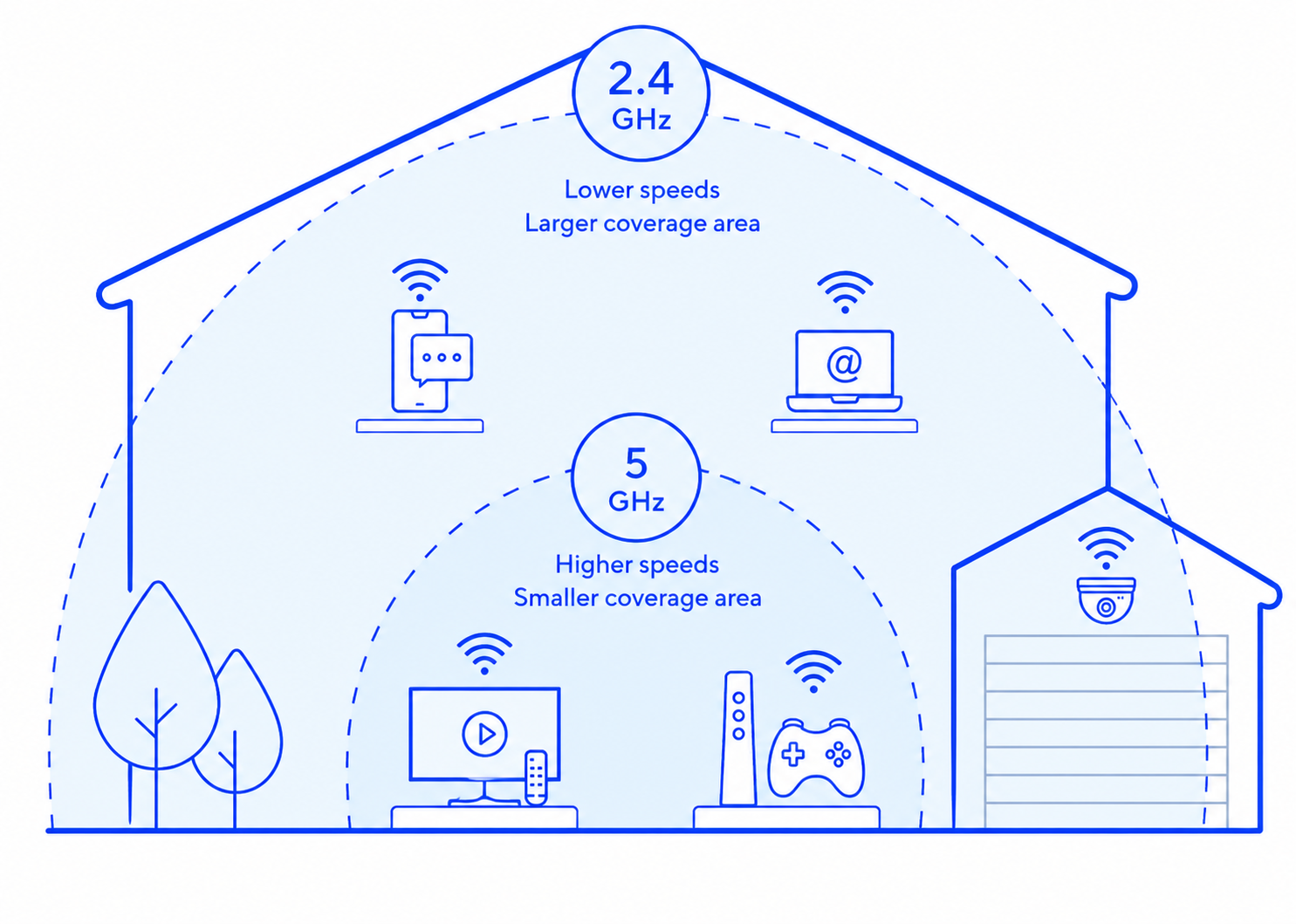
On our ZTE H3600 and Nokia Hyperhub routers, our dual-band Wi-Fi frequencies are joined into one singular network. This is due to the routers having band-steering capabilities which will automatically choose the best frequency for your device based on its distance from the router.
This creates additional stability and enables devices to move between frequencies for the best possible connection.
However, due to various environmental factors (including devices themselves) this can sometimes cause issues on the network.
Our experienced technical support team has found great results in separating the frequencies on our dual-band routers to tackle connectivity and speed issues.
Below, you’ll find how to do this yourself in order to possibly improveme your speed if you’ve been experiencing issues.
ZTE H3600
Make sure you are connected to the Hyperoptic network, and follow the steps:
Enter “192.168.1.1” into your web browser
Enter your Login credentials (these are displayed on the back of your router)
Go to Local Network on the top & click on ‘WLAN Setting’ on the bottom left of the screen.
Click on the ‘WLAN SSID Configuration’ drop-down arrow to open up the dialogue box.
You will see a total of 8 SSIDs for the 2.4Ghz or 5Ghz band – select your enabled band. (SSID1 & SSID5 default)
In the ‘Name’ section, proceed to add a simple suffix to your 2.4GHz & 5GHz SSID existing names to effectively separate them -> Example: ‘Hyperoptic Fibre 6A00 2.4GHz’ & ‘Hyperoptic Fibre 6A00 5GHz’
Click ‘Apply’ after modifying each separately
Once you have changed the information above, you will need to reconnect any devices previously connected to your wireless network to the newly separated network.
Nokia
Make sure you are connected to Hyperoptic connection, and follow the steps:
1. Type 192.168.1.1 into your browser and the log in screen will appear.
2. In the Username field, type “admin”. In the Password field, type the unique password as it appears on the sticker on the back of your router, under “Router login pass”, then login.
3. Once you have entered your login credentials, select Network in the left-hand menu, and then click on either Wireless (2.4GHz) or Wireless (5GHz).
4. Under SSID Configuration you will see SSID Name, proceed to add a simple suffix to your 2.4GHz & 5GHz SSID existing names to effectively separate them -> Example: ‘CC2D Hyperoptic Fibre Broadband 2.4GHz’ & ‘CC2D Hyperoptic Fibre Broadband 5GHz’
5. Remember to save your changes on the bottom of the page after you make changes to both Wireless 2.4GHz & Wireless 5GHz
6. Once you have changed the information above, you will need to reconnect any devices previously connected to your wireless network to the newly separated network.